 Prep IT · VPN
Connect to Prep VPN in 4 steps
Everything runs through ovpn.prep.vn and the OpenVPN Connect app. Watch the 78-second video, or follow the steps below at your own pace.
Recorded on Windows with a demo account. macOS uses the same steps.
Step by step
-
Open the portal
In Chrome, Edge or Safari, go to:
ovpn.prep.vn -
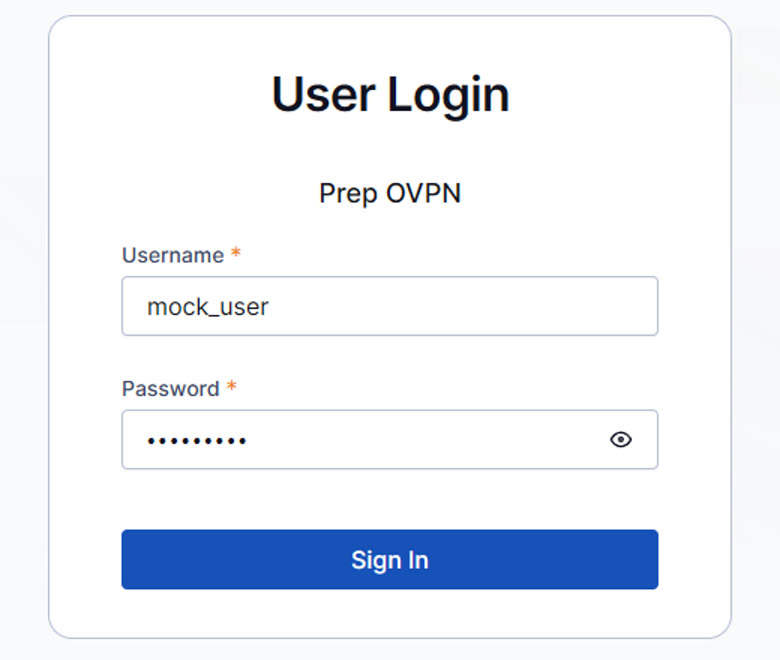
Sign in with your Prep account
Use your usual Prep username and password, then select Sign In.
-
Get OpenVPN Connect and your profile
The portal's Get connected page offers the app and your personal connection profile. Pick the way that matches your situation.
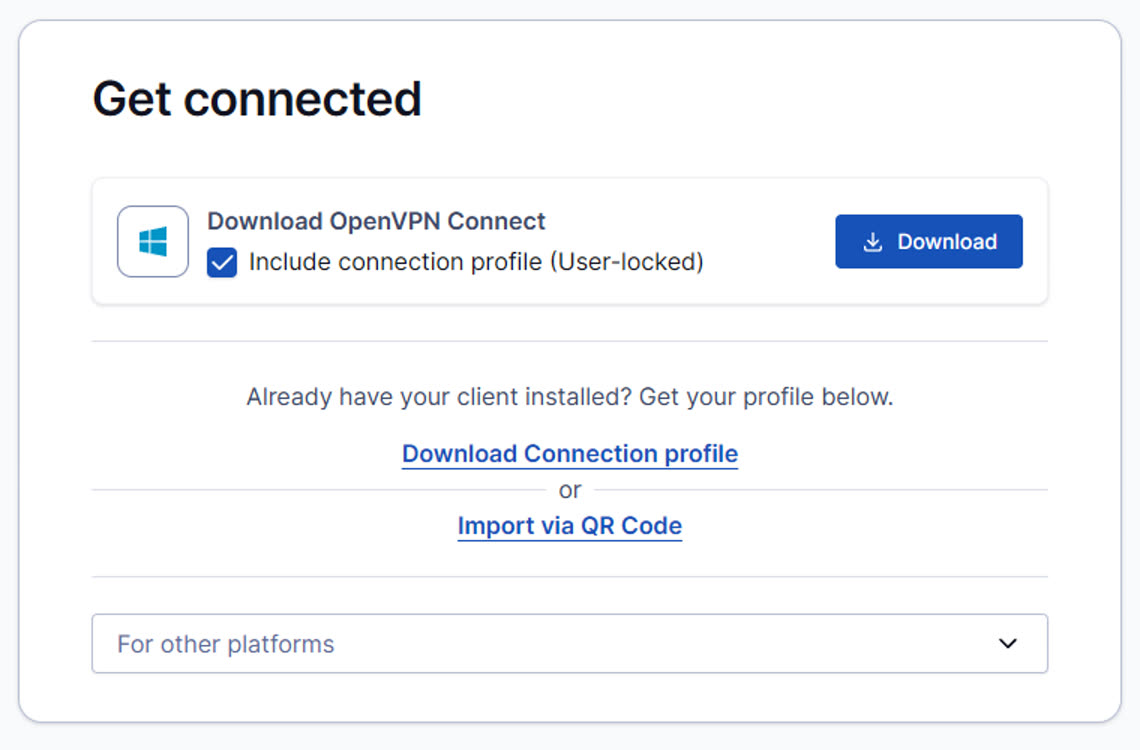
- Keep Include connection profile (User-locked) checked and select Download.
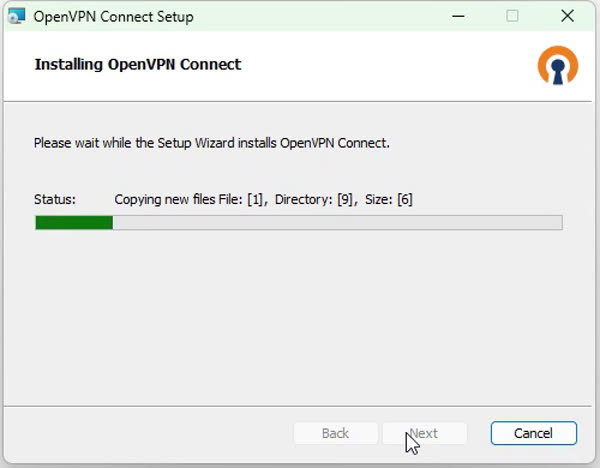
- Open the downloaded
openvpn-connect-…_signed.msiand click through the installer: Next, accept the licence, Install, Finish. Windows asks for admin approval once. - OpenVPN Connect opens. Select Agree; your profile
mock_user@ovpn.prep.vn [bundled]is already there.
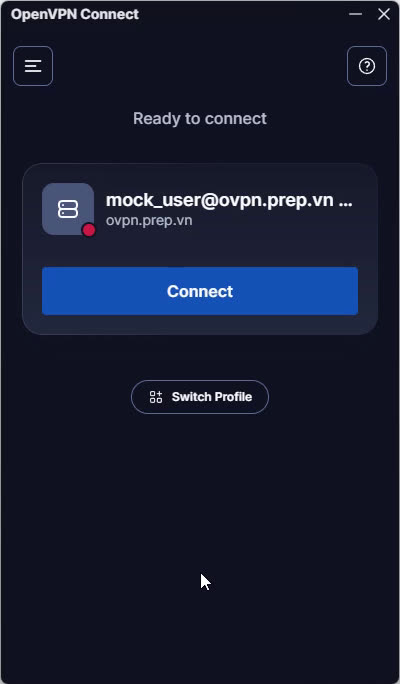
- On the portal, select Download Connection profile. You get a file like
profile-userlocked-yourname.ovpn. - In OpenVPN Connect, select Upload File and choose that file from Downloads.
- Confirm with Import. The profile appears, ready to connect.
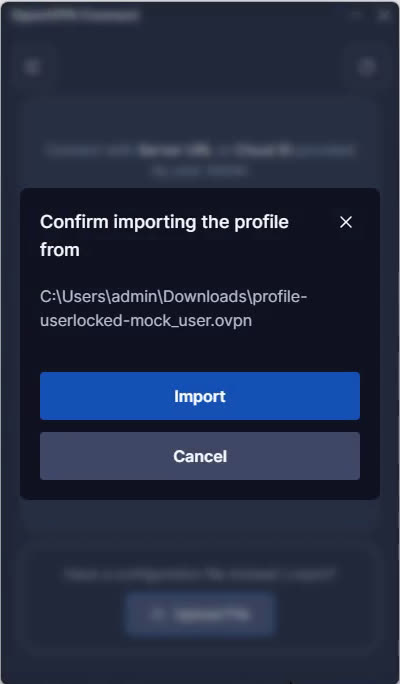
- Installed the plain client from openvpn.net/client? It has no profile yet.
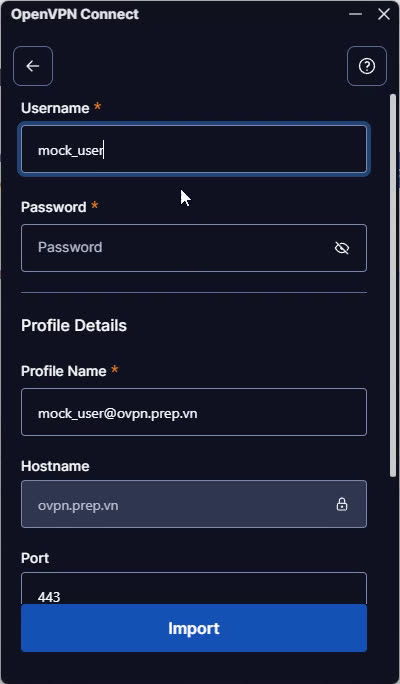
- In OpenVPN Connect, type ovpn.prep.vn under Enter your URL and select Continue.
- Enter your Prep username and password, then select Import.
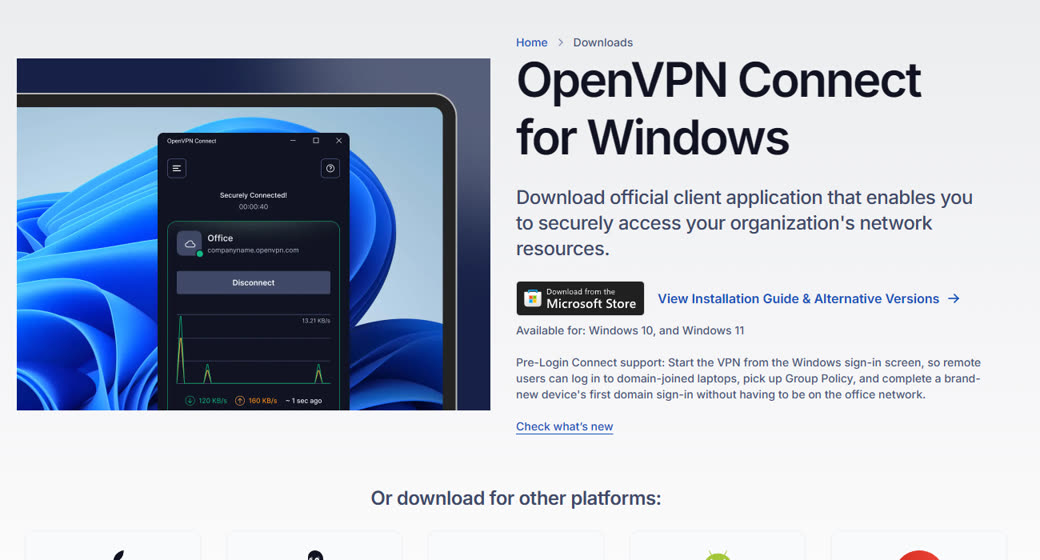
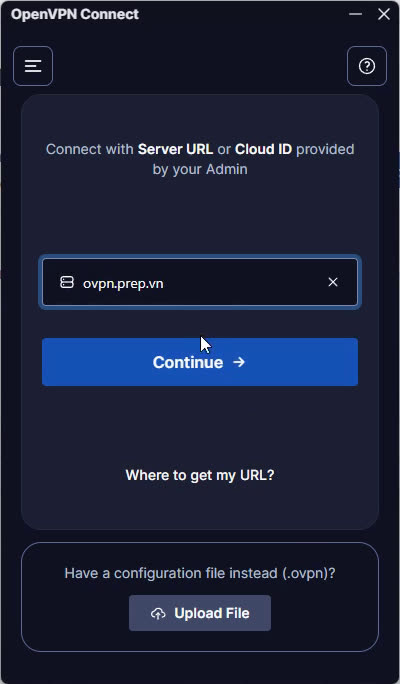
 Clicked Download and nothing happened?
Your browser blocked the pop-up the portal uses to start the download. Allow pop-ups for ovpn.prep.vn (Chrome: the icon at the right end of the address bar), reload, and select Download again.
-
Connect
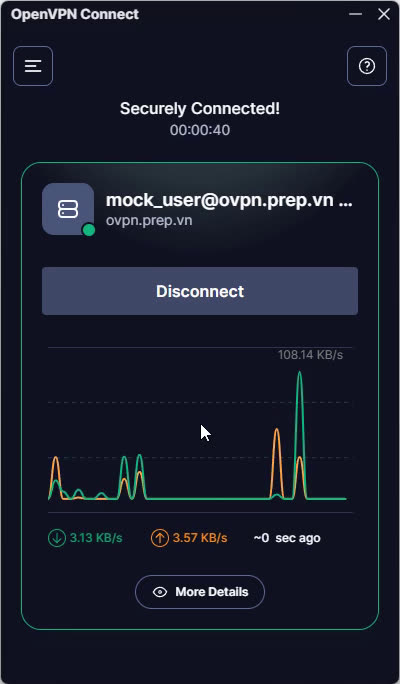
Select Connect, enter your password once more, and wait for Securely Connected! with the timer running.
Mac, phone or Linux?
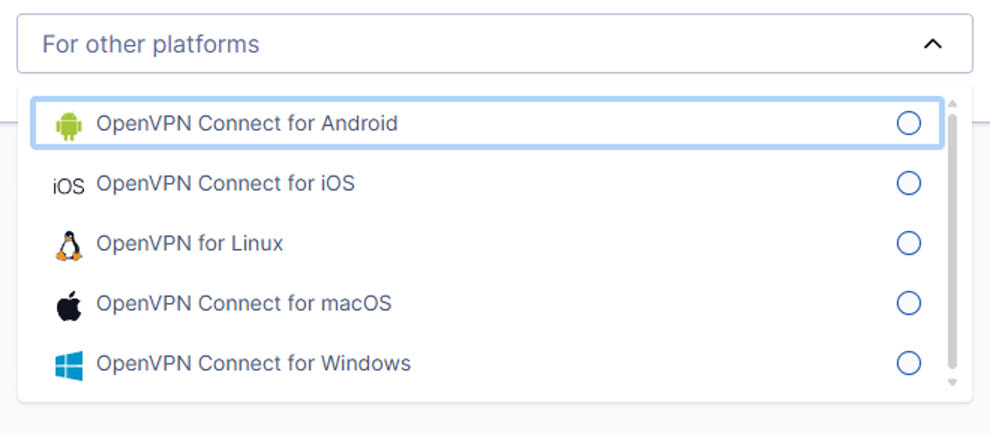
On the portal, open For other platforms and pick yours: Android, iOS, Linux, macOS or Windows. Then import your profile the same way as path B or C.
Disconnect when you're done
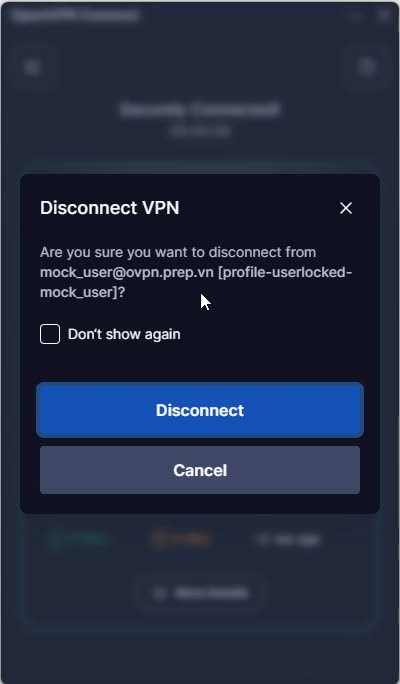
Select Disconnect in OpenVPN Connect and confirm. Your profile stays saved, so next time it's a single Connect.